JPG PNG WebP Converter
Convert images online for free
🔒 Images are processed in your browser and are not uploaded by this converter. Maximum file size: 20 MB.
Free JPG to PNG & WebP Image Converter
Convert your images into the right format for websites, blogs, social media, and everyday projects. Discover the differences between JPG, PNG, and WebP and learn how to choose the best format for your needs.
JPG Converter PNG Converter WebP Guide Beginner FriendlyLooking for a simple way to change your image format? A JPG to PNG converter or JPG to WebP converter can help you prepare images for websites, blogs, online projects, and digital content. Choosing the right format can also help you balance image quality, file size, and transparency.
In this guide, ToolXON explains how JPG, PNG, and WebP work, when to use each format, and how to convert images using an appropriate online image converter.
Use JPG for everyday photographs, PNG for graphics that need transparency, and WebP when you want an efficient image format for web publishing. The best option depends on the image and your intended use.
Table of Contents
What Is an Image Converter?
An image converter is a tool that changes an image from one file format to another. For example, you might convert JPG to PNG, PNG to WebP, or WebP to JPG depending on the requirements of your website or application.
Different formats serve different purposes. A photograph may work well as a JPG, while a logo with a transparent background may be better saved as PNG. WebP is another popular choice for websites because it can provide smaller files while maintaining good visual quality.
Before converting your images, remember that changing the file format does not automatically improve image quality. The result depends on the source image, the target format, and the converter settings.
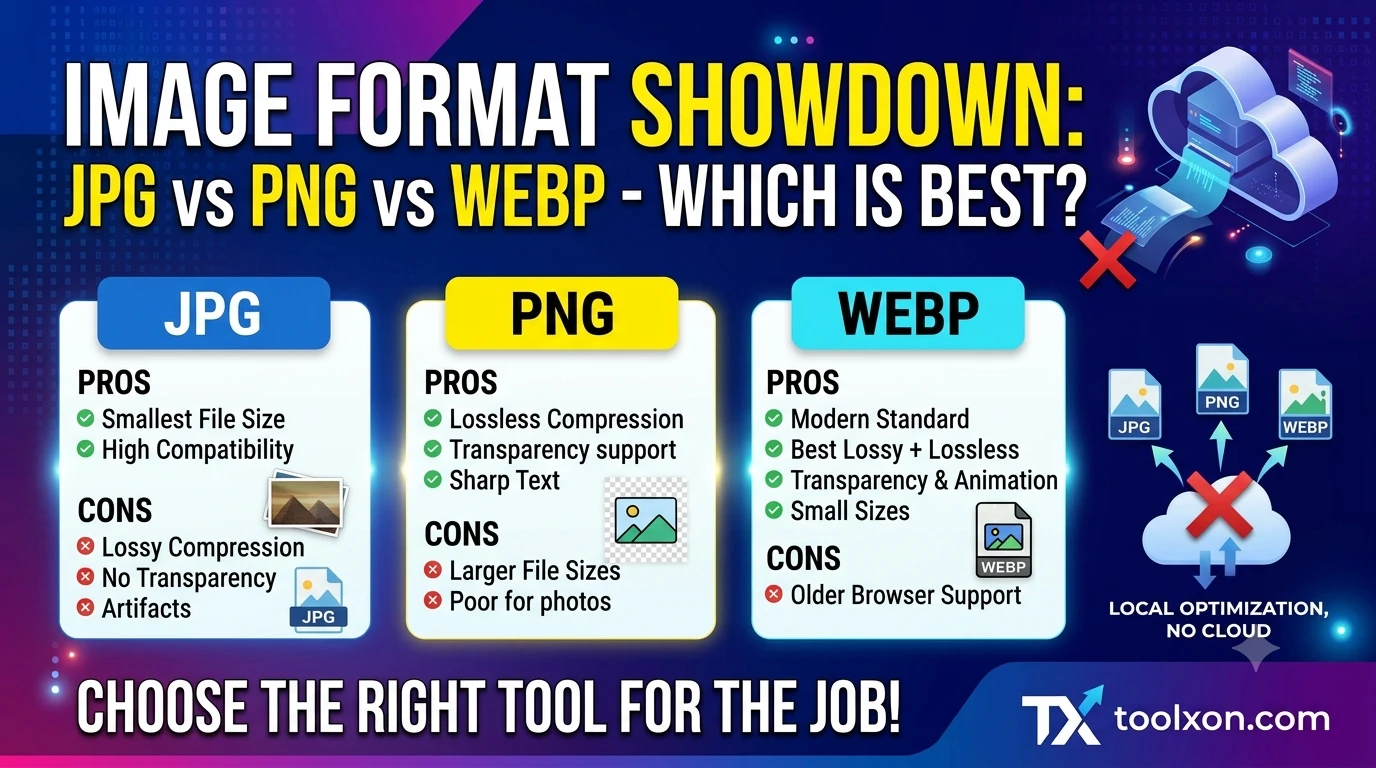
JPG vs PNG vs WebP: Which Format Should You Choose?
Best for photographs, travel pictures, product photos, and everyday images.
Usually uses lossy compression. Does not support transparency.
Best for logos, interface graphics, diagrams, and images that need transparent backgrounds.
Uses lossless compression and supports transparency.
Useful for website images, thumbnails, illustrations, and many types of online graphics.
Supports lossy and lossless compression, as well as transparency.
When Should You Convert JPG to PNG?
Convert JPG to PNG when your workflow requires a PNG file, such as for editing, compatibility with a particular application, or combining the image with other graphics. However, converting a JPG to PNG will not restore details lost during the original JPG compression. It also will not automatically remove the background.
When Should You Convert PNG to WebP?
Converting PNG to WebP can reduce the file size of many website graphics. WebP can preserve transparency, but the output quality and size depend on the conversion settings. Check transparent edges and fine details before publishing the converted image.
When Should You Convert WebP to JPG?
Convert WebP to JPG if an older application or a particular workflow requires JPEG images. Keep in mind that JPG does not support transparent backgrounds, so transparent areas may be replaced with a solid background during conversion.
How to Convert Images Online
Follow these general steps to convert your image using an online JPG, PNG, and WebP converter. The exact options may differ depending on the tool you use.
- Open an image converter: Visit a suitable online image conversion tool in your browser.
- Select your image: Choose the JPG, PNG, or WebP file you want to convert.
- Choose the output format: Select JPG, PNG, or WebP according to your needs.
- Adjust available settings: If supported, select image quality or other conversion options.
- Start the conversion: Use the tool's Convert button and wait for the process to finish.
- Download and check: Save the converted file and verify its appearance, dimensions, and background.
Ready to Convert Your Images?
Open your preferred image converter and choose the output format that suits your project.
Explore ToolXON ToolsVisit ToolXON to explore available online tools.
Benefits of Using an Image Converter
1. Better Format Compatibility
Some websites, applications, and content management systems work better with specific image formats. Converting a file can help you meet those requirements.
2. More Efficient Website Images
Using a suitable format and compression level can reduce image file sizes. Smaller image files may help pages load faster, especially when images are optimized alongside caching, responsive sizing, and other performance improvements.
3. Support for Transparent Graphics
PNG and WebP support transparency. These formats are useful for logos, icons, overlays, and other graphics that need to blend into different backgrounds.
4. Flexible Content Creation
Bloggers, designers, students, developers, and content creators often need different image formats for different projects. An image converter can simplify this part of their workflow.
Tips for Better Image Quality and SEO
- Choose the right format: Use JPG for many photographs, PNG for lossless graphics, and WebP when appropriate for web delivery.
- Resize images: Avoid uploading unnecessarily large images when a smaller version meets your display requirements.
- Balance quality and file size: Excessive compression can create visible artifacts, while unnecessarily high quality settings can increase file size.
- Use descriptive filenames: Names such as
website-banner.webpare easier to understand than generic filenames. - Add descriptive alt text: Explain the image's purpose for accessibility and search engines. Avoid keyword stuffing.
- Check your final image: Inspect the output for color changes, transparency issues, and unwanted artifacts.
- Keep the original: Save a backup before replacing an image with a converted version.
Privacy and Security Tips
Before uploading an image to any online converter, consider whether the file contains personal information, confidential documents, private photographs, or sensitive business details.
- Review the converter's privacy policy before uploading sensitive files.
- Prefer a trusted tool with clear information about how files are processed and stored.
- Do not upload confidential images to an unfamiliar website.
- If privacy is essential, consider an offline converter that processes files locally on your device.
Not every online converter processes images in the same way. Check the specific tool's documentation to understand whether your images are uploaded to a server or processed directly in your browser.
Frequently Asked Questions
1. How can I convert JPG to PNG for free?
Open an image converter that supports JPG input and PNG output, select your image, choose PNG, and start the conversion. Download the result and check the image quality. Converting JPG to PNG does not recover details already lost through JPG compression.
2. Is it possible to convert PNG to WebP online?
Yes. Use a converter that supports PNG as the input and WebP as the output format. Review the converted image to ensure that transparency and important visual details are preserved.
3. Does converting JPG to PNG improve image quality?
No. Changing JPG to PNG does not restore the original details lost during lossy compression. PNG may preserve the pixels in the converted file without further lossy compression, but it cannot reverse previous quality loss.
4. Is WebP better than JPG?
Neither format is always better. WebP can offer smaller files at comparable visual quality in many cases and supports transparency. JPG remains useful for photographs and workflows that require JPEG compatibility.
5. Can WebP images have transparent backgrounds?
Yes. WebP supports transparency. The result depends on the original image and the converter's settings, so check the output before using it.
6. Can I convert an image on my Android phone?
Yes. You can use a compatible online converter in your mobile browser or an image conversion app. Choose a tool that supports your input and output formats and follow its instructions.
7. Will converting an image reduce its file size?
It may. The result depends on the original format, dimensions, compression method, and quality settings. Some conversions produce smaller files, while others can make the file larger.
8. Is it safe to use a free online image converter?
Safety depends on the particular service. Review its privacy policy, avoid uploading confidential files to untrusted websites, and use a locally processing tool when you need stronger privacy.
Final Thoughts
Choosing the right image format can make your images easier to use across websites, blogs, applications, and creative projects. JPG is a practical choice for many photographs, PNG is useful for transparency and lossless graphics, and WebP can provide efficient image delivery for modern websites.
Before converting an image, consider its purpose, the required format, and the balance between quality and file size. Always inspect the final result to make sure it meets your needs.
Explore ToolXON.com for more online tools and practical digital guides.
ToolXON shares practical online tools and digital resources designed to help users complete everyday tasks more conveniently. Visit the website for more guides and tools.
Note: Supported formats, conversion options, upload limits, and processing methods vary by tool. Always check the actual converter's features before use.
Leave a Comment
Join the discussion. Please keep comments respectful.