Image Resizer – Resize Images Online Free
Need to resize a photo for a website, social media post, or online form? Image Resizer makes it easy to change an image's width and height without installing additional software. Whether you need a smaller thumbnail, a specific pixel size, or a differently sized photo for your website, you can enter custom dimensions and prepare the image in just a few steps.
Instead of opening a complicated editing program, use this simple online image resizer to adjust your image dimensions. You can also choose an output format that suits your needs, including PNG, JPEG, or WebP. This is useful when preparing images for websites, presentations, digital documents, and everyday projects.
Try the Free Image Resizer Online
Image Resizer
Resize your images quickly in your browser.
Resized Preview
How to Resize an Image Online
- Open the Image Resizer above.
- Select and upload the image you want to resize.
- Enter your preferred width and height in pixels.
- Choose PNG, JPEG, or WebP as the output format.
- Download your resized image and check the result.
For the best results, use dimensions that match your intended display size. If you need to reduce file size as well, resizing alone may not be enough.
Image Resizer Features
- Custom pixel dimensions: Set the width and height you need.
- Multiple output formats: Download images as PNG, JPEG, or WebP.
- Quick image resizing: Prepare images without using a full desktop editor.
- Flexible use: Resize photos for websites, thumbnails, and digital content.
Image Resizing vs Image Compression
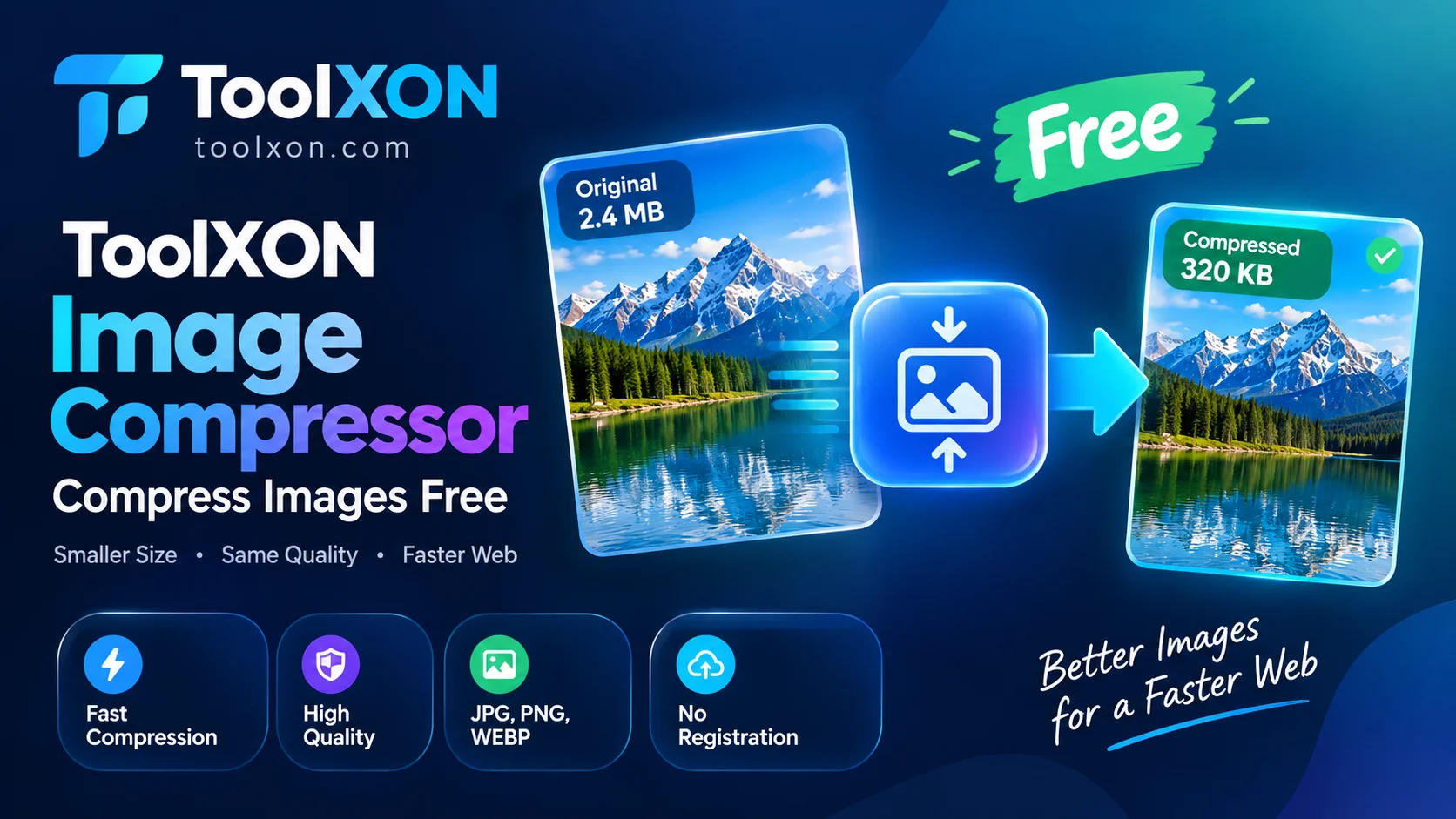
Resizing changes an image's dimensions, while compression reduces its file size. If your image must meet a specific upload limit, use the ToolXON Image Compressor. To convert between image formats, try the ToolXON Browser-Side Image Converter.
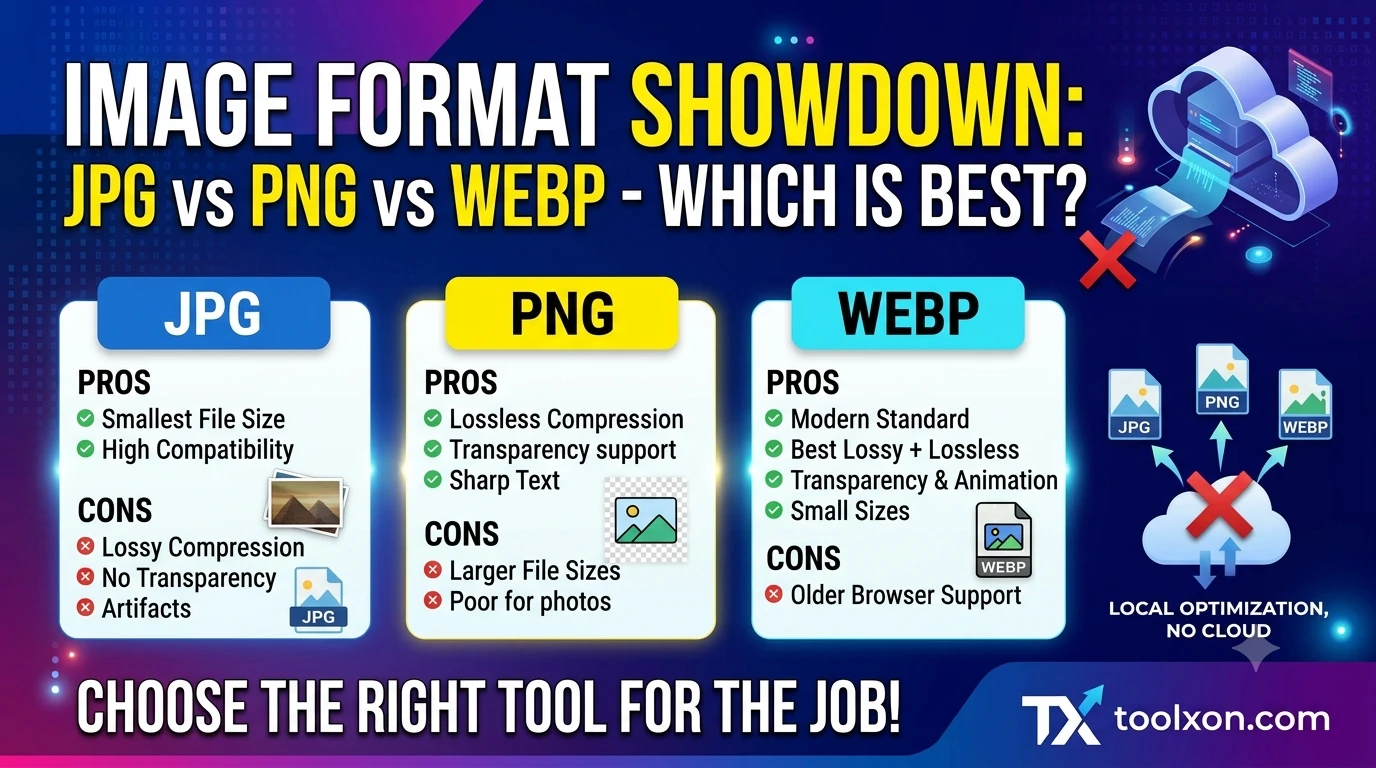
Not sure which format to choose? Read our guide to JPG vs PNG vs WebP: Best Image Format.
Frequently Asked Questions
Is this image resizer free to use?
You can use the Image Resizer tool on ToolXON to resize images without installing a separate editing application.
Can I resize an image to custom pixels?
Yes. Enter the required width and height to set your preferred image dimensions.
Which image formats can I download?
The tool supports PNG, JPEG, and WebP output formats.
Does resizing reduce image file size?
It may reduce file size, but the result depends on the image dimensions and output format. Use an image compressor when you need more control over file size.
Will resizing affect image quality?
Changing dimensions can affect sharpness, especially when enlarging a small image. For clearer results, start with a good-quality original image.
Resize Images Easily with ToolXON
Use the ToolXON Image Resizer to prepare images for websites, thumbnails, and everyday digital projects. Set your dimensions, select an output format, and download the resized image when you're ready.
Leave a Comment
Join the discussion. Please keep comments respectful.